
QuickBooks Integration For WooCommerce
Your WooCommerce orders, payments, refunds, customers, products and stock — in QuickBooks Online, on their own and to the cent. This guide shows you how to set it up and use every part of it, step by step.
Nothing in the guide matches that. Try fewer or different words.
What the plugin does
When someone buys from your store, the plugin records that sale in QuickBooks Online for you. No copying, no spreadsheets.
- Orders become sales receipts (paid) or invoices (not paid yet) — or, for very busy stores, one balanced journal entry a day. Totals and tax are checked to the cent.
- Payments are recorded against invoices, refunds become refund receipts or credit memos, and unpaid cancelled orders are voided.
- Customers and products stay the same in both places, matched by email and SKU — never guessed.
- Stock has one owner — WooCommerce or QuickBooks — so you never sell what you don't have.
- Stripe payouts become deposits that match your bank, with Stripe's fees as an expense.
Everything runs in the background, so your checkout never slows down. If QuickBooks is busy, the plugin waits and tries again by itself. Anything it can't do waits for you in one list, with what to do.
Every plan has every feature, both ways. The free plan syncs 10 orders, 10 products and 10 customers a month; Pro has no monthly limit. See Free and Pro plans.
Before you start
You need:
- A WordPress site with WooCommerce installed and active (WordPress 6.5 or newer, WooCommerce 8.0 or newer, PHP 8.0 or newer).
- A QuickBooks Online company in the United States, Canada, the United Kingdom or Australia. QuickBooks Desktop isn't supported.
- An administrator login for WordPress, and the QuickBooks login of someone who can connect apps to the company.
- A few minutes — a little longer if you use your own Intuit app.
Your QuickBooks password is never typed into WordPress. You sign in on Intuit's own page, and the plugin keeps only the access Intuit gives it — stored encrypted.
For your developer (recommended): add an encryption key to wp-config.php before connecting, so the keys are encrypted with a key of their own rather than your WordPress salts:
define( 'QBOWC_ENCRYPTION_KEY', 'a-long-random-string' );
The Secure storage tile on the Connection page shows which one is in use.
Install the plugin
- In WordPress, go to Plugins → Add New Plugin.
- Search for QuickBooks Integration For WooCommerce.
- Click Install Now, then Activate.
- A new QuickBooks item appears in the left menu. Open it to start the setup wizard.
Prefer to upload it? Download the zip from WordPress.org, then use Plugins → Add New Plugin → Upload Plugin.
First-time setup
The first time you open QuickBooks, a short wizard walks you through three steps. Until it's finished, the other QuickBooks pages send you back to it.
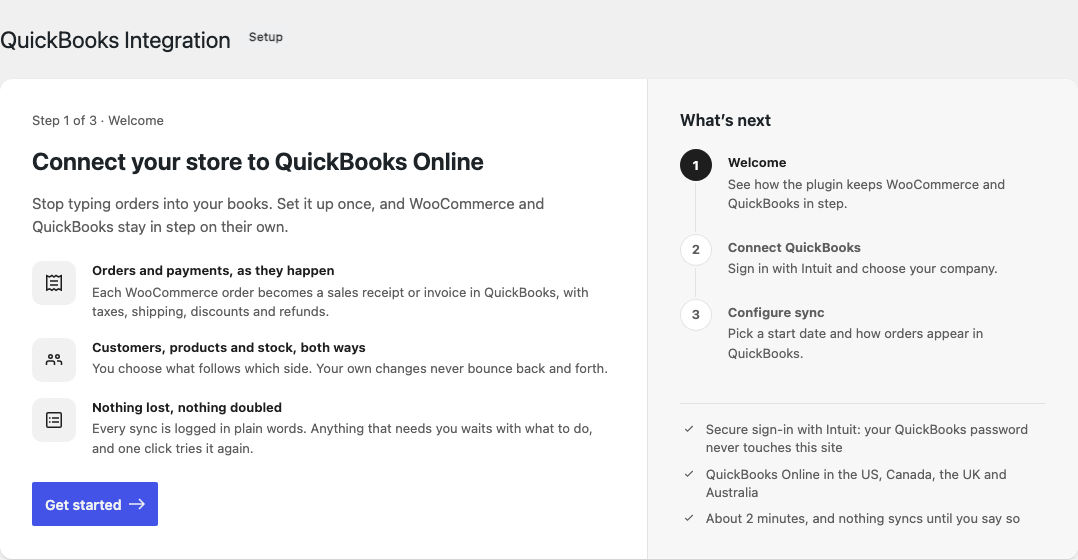
Step 1 · Welcome
A quick overview of what the plugin does. Click Get started.
Step 2 · Connect QuickBooks
There are two ways to connect. Use the first one unless you have a reason not to.
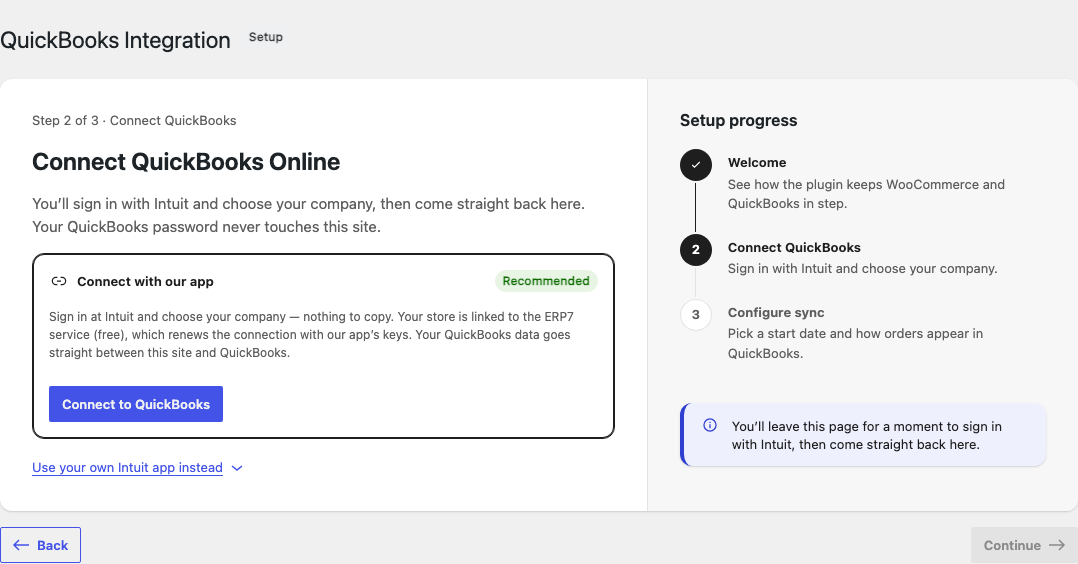
A. Connect with our app RECOMMENDED
- Click Connect to QuickBooks.
- Intuit's sign-in page opens. Sign in with the QuickBooks account that owns your company.
- Choose the company this store should sync with, and allow the connection.
- You come straight back to the wizard, which shows the company's name, country, home currency and tax. Check it's the right one, then click Continue.
Nothing to copy, and no developer account. Your store is linked to our service on the free plan, which renews the connection with our app's keys. Your QuickBooks records still go straight between your site and QuickBooks — they never pass through us.
B. Use your own Intuit app
Click Use your own Intuit app instead to open it. You'll need a free Intuit developer account.
- At developer.intuit.com, create an app with the
com.intuit.quickbooks.accountingscope. - In the app's Keys & credentials, add the Redirect URI the wizard shows. Click Copy — don't type it by hand, it must match exactly.
- Paste the app's Client ID and Client Secret into the wizard, choose Development (sandbox) or Production keys, and click Save keys.
- Click Connect with my own app, sign in at Intuit, choose your company, and allow it.
Intuit only accepts real web addresses for production keys: your site must use https, a domain name (not an IP address), and pretty permalinks (Settings → Permalinks, anything but "Plain"). The wizard tells you exactly what to change if it can't.
Step 3 · Configure sync
Two basics. Everything else is on the sync pages, and you can change all of it later.
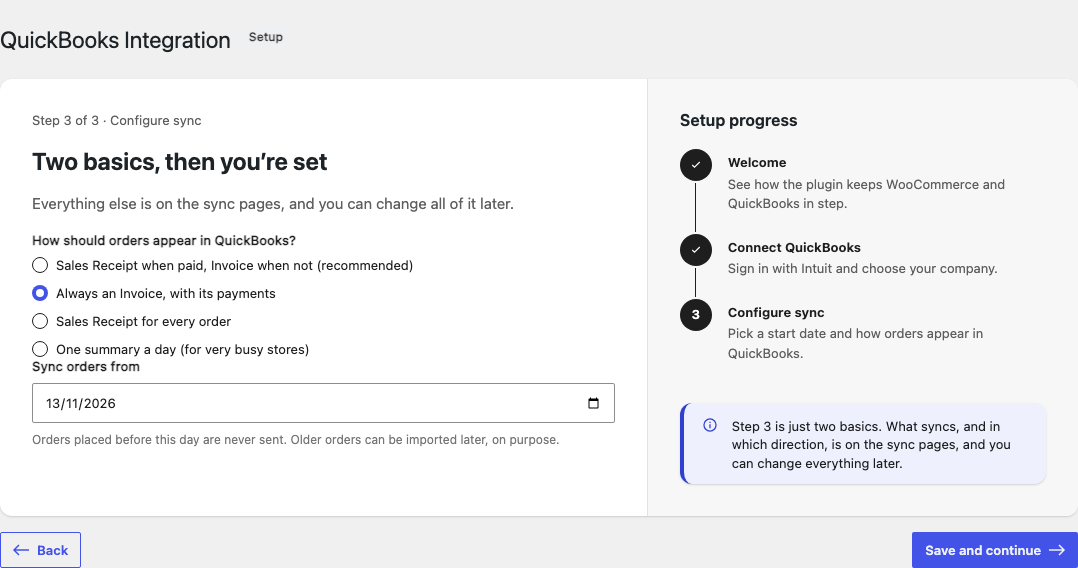
- How should orders appear in QuickBooks?
- Sales Receipt when paid, Invoice when not (recommended) — most stores.
- Always an Invoice, with its payments — if your accountant wants an invoice for every sale.
- Sales Receipt for every order.
- One summary a day — for very busy stores: each day's orders as one balanced journal entry. See One summary a day.
- Sync orders from — orders placed before this day are never sent. Older orders can be sent later, on purpose, with Past orders.
Click Save and continue, then Go to dashboard.
Start syncing
Connecting sends nothing. The plugin waits until you've chosen what syncs and started it. The Dashboard shows a Finish setting up card with the three steps; the next one is outlined in green and has its button.
- QuickBooks connected — done in the wizard.
- Choose what syncs — open Order Sync, Customer Sync and Product & Inventory. Each page has its own switch (the first tile) and its own direction. Turn on the ones you want and click Save.
- Start syncing — click Start syncing…. It tells you exactly what will be sent (orders from your start date, customers and products as you chose, stock) and asks before it begins.
The card disappears once syncing is on. Pause syncing on the Connection page stops everything at once. Changes made while it's paused aren't sent later; each record syncs again the next time it changes.
Settings save from the small bar at the top of each page: Save, or Discard to undo your changes. It appears as soon as you change something.
Dashboard
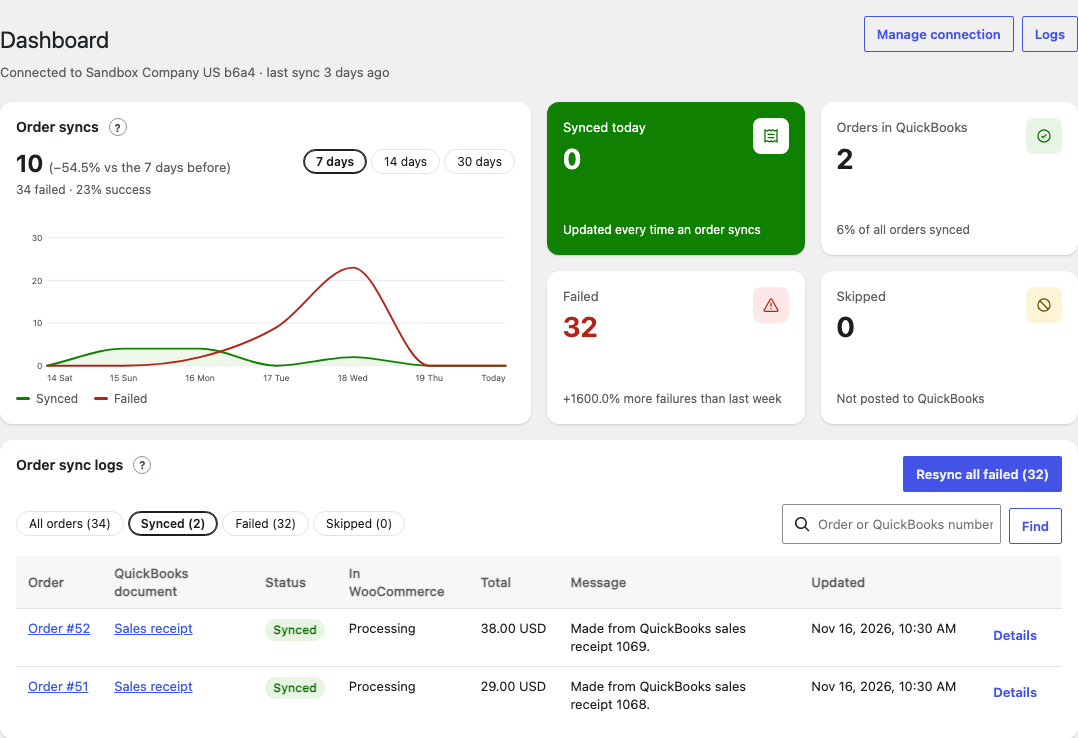
The Dashboard is your quick health check: is the store connected, how are orders syncing, and what did each order become in QuickBooks?
At the top
The line under the title says which QuickBooks company you're connected to and when the last sync ran. Manage connection and Logs are on the right. A banner appears only if something stops everything: syncing is paused, background jobs aren't running, or keys can't be stored safely.
Order syncs
Synced (green) and failed (red) order syncs per day, for 7 days, 14 days or 30 days, in your store's time zone. The big number is what synced in that period, compared with the period before, with how many failed and the success rate under it. Hover a day — or tab to the chart and use the arrow keys — for that day's numbers.
The four cards
- Synced today — order syncs today. Opens the order lines in Logs.
- Orders in QuickBooks — orders recorded in QuickBooks, and their share of all orders.
- Failed — orders that stopped, this week against last week.
- Skipped — orders not posted to QuickBooks on purpose, with how many are waiting.
Order sync logs
One row per order, newest change first: the order, its QuickBooks document (click to open it in QuickBooks), the Status (Synced, Failed, Needs you, Skipped, Waiting), its WooCommerce status, the total, and a Message — "Total and tax match to the cent", or why it stopped with a link to the setting that fixes it.
- Filter with All orders, Synced, Failed or Skipped, or search by order number (
1043) or QuickBooks number (WEB-1043). - Resync sends one order again; Resync all failed sends every failed one again. Resyncing never makes a second document — it updates the one already there.
- Details opens that order's own lines in Logs.
Orders
The Order Sync page decides what each order becomes in QuickBooks and what it's recorded under. Orders go from WooCommerce to QuickBooks; orders made in QuickBooks can come the other way too, if you choose.
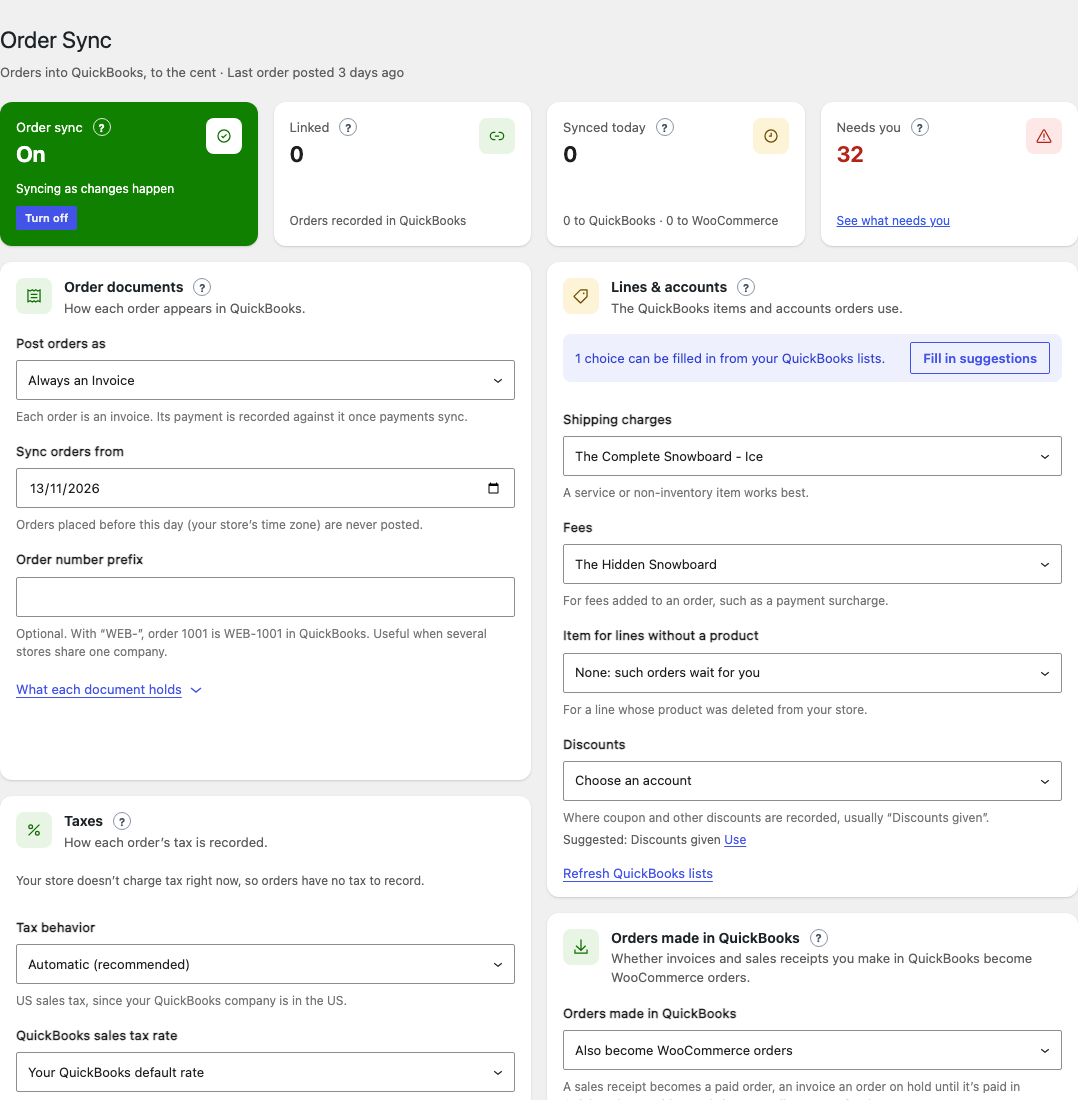
Turn it on
The first tile, Order sync, is the page's switch: On, Off, Paused (the store's syncing is off), or Reconnect. Click Turn on, then Save. The other tiles show how many orders are linked, synced today, and how many need you.
Order documents
- Post orders as:
- Sales Receipt when paid, Invoice when not (recommended). A paid order (processing, completed, or with a date paid) becomes a sales receipt; anything else an invoice, and its payment is recorded when it's paid.
- Sales Receipt for every order.
- Always an Invoice — its payment is recorded against it.
- One summary a day (for very busy stores) — see below.
- Sync orders from — orders placed before this day, in your store's time zone, are never posted.
- Order number prefix — optional, up to 8 letters, numbers or dashes. With
WEB-, order 1001 isWEB-1001in QuickBooks. Useful when several stores share one company.
What each document holds
- Each product line with its QuickBooks item, quantity and price; shipping (Shipping: Flat rate); fees; one WooCommerce discounts line for the order's discount; and the tax exactly as charged.
- The customer it's recorded against — see Customers on orders.
- The order's billing email, the order number as the Reference no., and a memo with the customer's checkout note. QuickBooks is never asked to email the document.
Before anything is sent, the plugin checks the order adds up, that QuickBooks can take its currency, that the items and accounts it needs are chosen, and that each of its taxes has a QuickBooks code. After posting, it reads the document back and compares the total. A document that doesn't match is voided, so no wrong amount stays in your books.
Lines & accounts
The QuickBooks items and accounts orders use. The lists come from your QuickBooks; Refresh QuickBooks lists reads them again.
- Shipping charges and Fees — a service or non-inventory item works best.
- Item for lines without a product — for a line whose product was deleted from your store, and for refunds of an amount rather than of products. None means such orders wait for you.
- Discounts — usually "Discounts given".
- Deposit sales receipts to — the bank account, or Undeposited Funds (the default).
Where the plugin can tell what you'd choose, it suggests it: Suggested: … Use under an empty field, and Fill in suggestions at the top of the card. Nothing is saved until you click Save. When two choices fit equally, it suggests nothing — that choice is yours.
One summary a day
For very busy stores: instead of one document per order, each day's orders become one balanced journal entry, posted shortly after the day ends (numbered SUM-20261113, with your prefix). It holds the day's sales, shipping, tax collected, discounts, money from paid orders, and what is still owed under the shared customer. Choose its accounts under Daily summary accounts: Sales, Shipping, Tax collected, Discounts and Money from paid orders.
A later payment, edit or cancellation updates the same entry. Products and customers don't need to be in QuickBooks for a summary. It can't be used while QuickBooks owns stock, because a summary doesn't take sold items off QuickBooks' stock.
Orders made in QuickBooks
- Stay in QuickBooks (default) — orders only go one way.
- Also become WooCommerce orders — sales receipts and invoices made in QuickBooks from now on become WooCommerce orders, with their lines, totals, tax and customer. A payment recorded in QuickBooks marks the order paid; a void cancels it. No WooCommerce emails are sent and stock isn't touched. If several stores share one QuickBooks company, switch this on in one store only.
Which orders are never posted
- Pending, failed and draft orders.
- Orders cancelled before they were posted.
- Orders placed before Sync orders from (unless you send them as past orders).
- Orders that came from QuickBooks.
What happens to an order, start to finish
| In WooCommerce | In QuickBooks |
|---|---|
| Order is placed and paid | A sales receipt, checked to the cent (or an invoice, as you chose). |
| Order is placed but not paid yet | An invoice. |
| The invoice's order is paid | A payment against the invoice, with your payment method and deposit account. |
| The order is edited | The same document is updated in place. |
| A refund is made | A refund receipt, or a credit memo applied to an unpaid invoice. |
| An unpaid order is cancelled | Its invoice is voided. |
| A paid order is cancelled | Nothing: refund it in WooCommerce and the refund is recorded. |
All of this happens in the background, usually within a minute — your checkout never waits for QuickBooks.
Taxes
On Order Sync → Taxes, choose how each order's tax is recorded. The plugin always sends the tax exactly as your store charged it, so totals in QuickBooks match your orders.
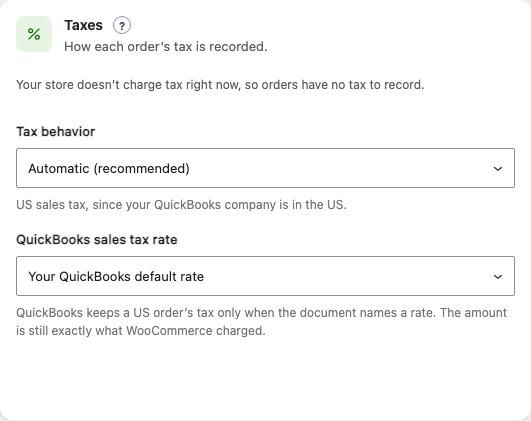
- Tax behavior:
- Automatic (recommended) — US sales tax for a US company, tax codes everywhere else.
- US sales tax — lines are marked taxable or not, and the document names the rate.
- Tax codes, matched by rate — your list first, then the only QuickBooks code with the same rate.
- Tax codes, only the ones I list — nothing is matched by rate.
- United States: QuickBooks sales tax rate — by default your QuickBooks default rate.
- Canada, the UK and Australia: Tax code for lines without tax (a 0% code), and Your taxes and their QuickBooks codes: each WooCommerce tax ("VAT 20%") with its QuickBooks tax code. Add a tax adds a row.
How each of your taxes is recorded lists every tax your store charges with the code it will use, and why: your choice, the same rate, or what's missing.
The plugin never guesses a tax. If two QuickBooks codes have the same rate, or a tax has no code, orders with that tax wait in Needs attention with the tax named — nothing is posted half-done. Map it, click Save, and they carry on by themselves.
Selling in another currency than your QuickBooks company's? Turn on multi-currency in QuickBooks first (gear icon → Account and settings → Advanced → Currency, then add the currency under gear icon → All lists → Currencies). Each currency gets its own shared customer, for example "WooCommerce Sales (EUR)".
Payments & refunds
On Order Sync → Payments, refunds & cancellations, give each of your payment methods its QuickBooks payment method and the account its money goes into.
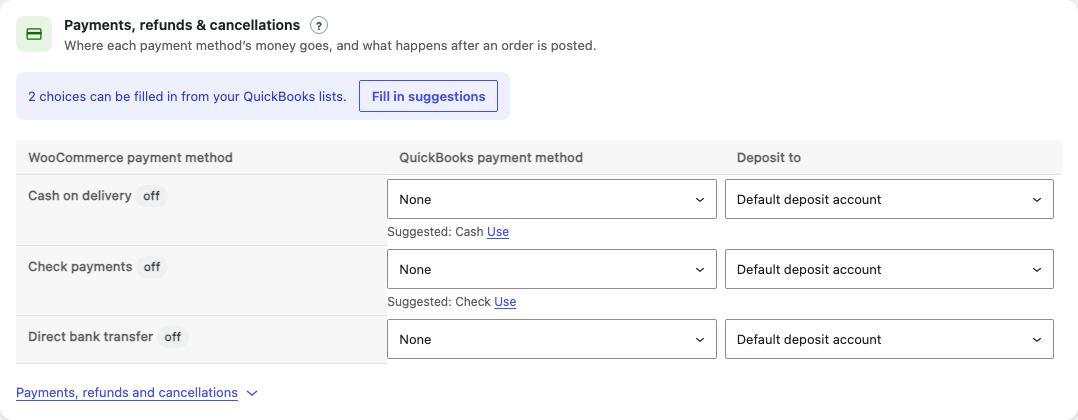
- QuickBooks payment method — for example Cash for cash on delivery, Check for check payments, Credit Card for card payments. The plugin suggests one where it's clear.
- Deposit to — the default deposit account, or a bank or Undeposited Funds account.
- Fill in suggestions fills every empty choice in the table at once.
What happens
| When | In QuickBooks |
|---|---|
| An invoiced order is paid | One payment against the invoice, dated the day it was paid, never more than the invoice still owes. |
| A refund of a sales receipt or a paid invoice | A refund receipt with the refunded lines, shipping, fees and tax, numbered 1001-R1, 1001-R2… |
| A refund of an invoice not paid yet | A credit memo, applied to the invoice so it owes less. |
| An unpaid order is cancelled | Its invoice is voided. |
| A paid order is cancelled | It stays as it is. Refund it in WooCommerce and the refund is recorded. |
Cancelling an order never refunds the customer's money. If they're owed it, refund them through your payment gateway as usual.
Stripe payouts
Stripe pays your sales out a few days later, less its fees, in one payout. With the WooCommerce Stripe plugin, each payout can become one QuickBooks deposit for exactly what reached your bank — so it matches your bank line — with Stripe's fees as an expense.
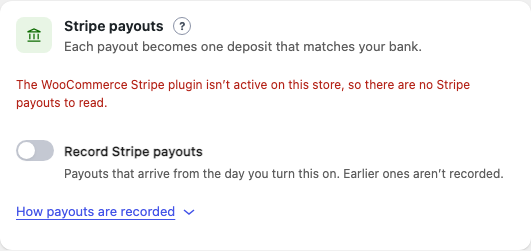
- Turn on Record Stripe payouts. (It needs the WooCommerce Stripe plugin, and says so if it isn't there. This plugin stores no Stripe keys: it uses the Stripe plugin's own connection.)
- Choose Payouts arrive in (your bank account) and Stripe fees (an expense account). Disputes and adjustments is needed only when a payout has some.
- Click Save. Payouts arriving from today are checked every hour; Check now checks straight away.
Every order in a payout must be in QuickBooks first; a payout waits for any that are on their way. The payout's transactions must add up to what reached the bank, or nothing is posted. Payouts made by hand in Stripe, or in another currency than your company's, wait in Needs attention with a note.
Stripe payments must not already go to the payout bank account or to Undeposited Funds (set on Payments): the money would be counted twice. The page refuses to save that, and says why.
Past orders
Orders placed before your Sync orders from date are never sent on their own. To send some of them, once:
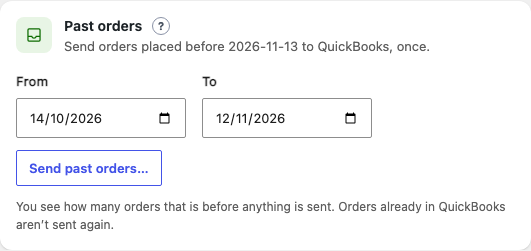
- Choose From and To (by default, the 30 days before your start date).
- Click Send past orders…. The plugin counts them first: "Send 142 past orders to QuickBooks?"
- Click Send. A progress bar shows how many are in QuickBooks, in line, and need you.
Processing, completed, on-hold and refunded orders are sent, oldest first, with their payments and refunds — exactly like new orders, and always behind today's orders so your shop never waits. Orders already in QuickBooks are left alone. Pause, Resume and Cancel import do what they say; orders already sent stay in QuickBooks.
On the free plan, past orders count towards the month's 10 orders like any other order.
Customers
Keep your WooCommerce customers and your QuickBooks customers the same — names, email, phone, company and billing address — and decide who each sale is recorded against.
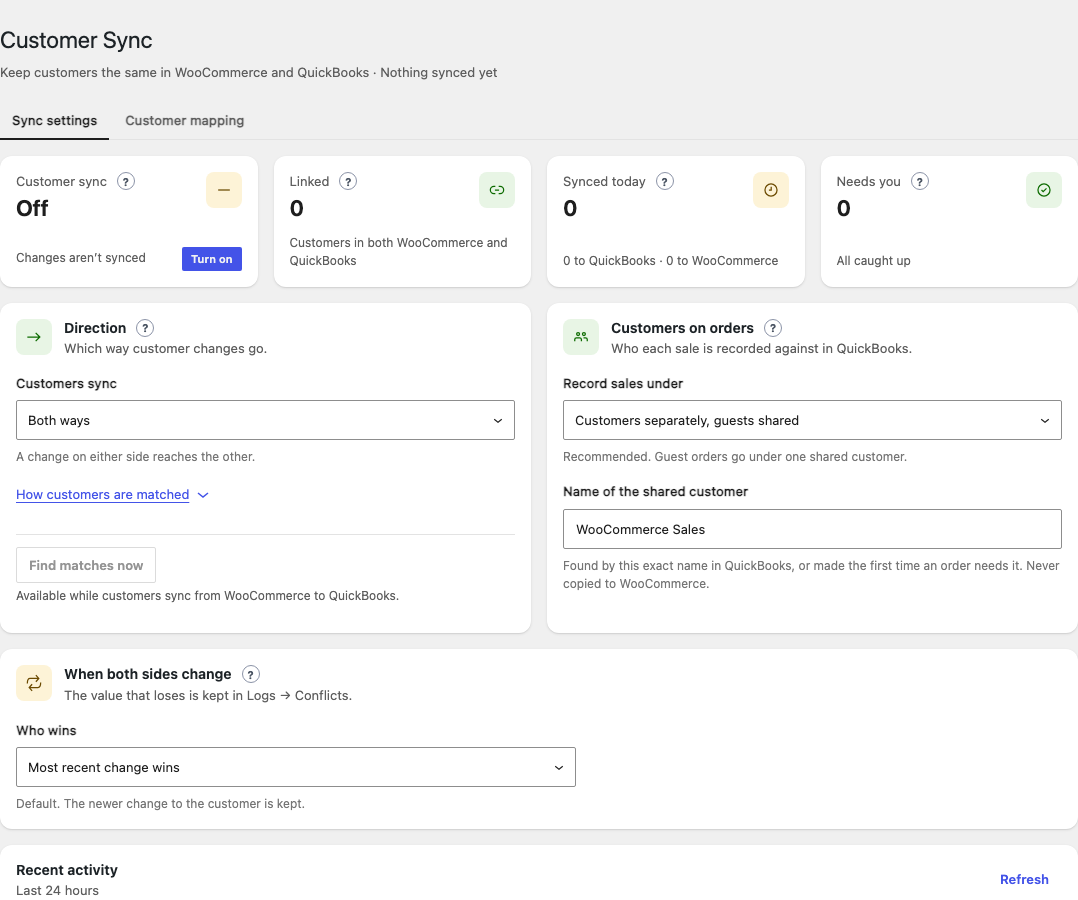
Turn it on
- Open QuickBooks → Customer Sync.
- On the Customer sync tile, click Turn on.
- Under Direction, choose Customers sync: Both ways, WooCommerce → QuickBooks only or QuickBooks → WooCommerce only.
- Click Save.
How customers are matched
By email, never by guessing. Before making a customer, the plugin looks for one with the same email on the other side and links the two, filling in only what's empty there — so nobody is added twice.
- Only WordPress users with WooCommerce's customer role sync. Administrators and shop managers never do.
- QuickBooks sub-customers (jobs), inactive customers and the shared customer are never copied to WooCommerce.
- A customer made in WooCommerce from QuickBooks gets a random password and no email — they can use "Lost your password?" when they want to sign in.
- QuickBooks never changes the email a customer signs in with: its email goes to their billing email.
Find matches now links customers already in both places by email; it never creates one.
Customers on orders
- Record sales under:
- Customers separately, guests shared (recommended) — each customer's orders go under their own QuickBooks customer; guest orders under one shared customer.
- Every order under one shared customer — customers aren't copied to QuickBooks at all.
- Name of the shared customer — "WooCommerce Sales" by default. Found by this exact name in QuickBooks, or made the first time an order needs it.
When both sides change
With Both ways, Who wins decides when the same detail changed on both sides before the next sync: Most recent change wins (default), WooCommerce is the source of truth, or QuickBooks is the source of truth. The value that lost is kept in Logs → Conflicts.
Customer mapping
The Customer mapping tab shows which WooCommerce customer is which QuickBooks customer. Link or Change link searches QuickBooks by name or email; linking by hand copies nothing. Unlink removes the pair, and Try again runs the matching again.
Deleting a customer isn't synced. A customer deleted in WooCommerce is never brought back from QuickBooks. Tools → Erase Personal Data removes what the plugin kept about them; their QuickBooks record isn't touched.
Products
Each simple product, and each variation of a variable product, pairs with one QuickBooks item, so order lines land on the right item.
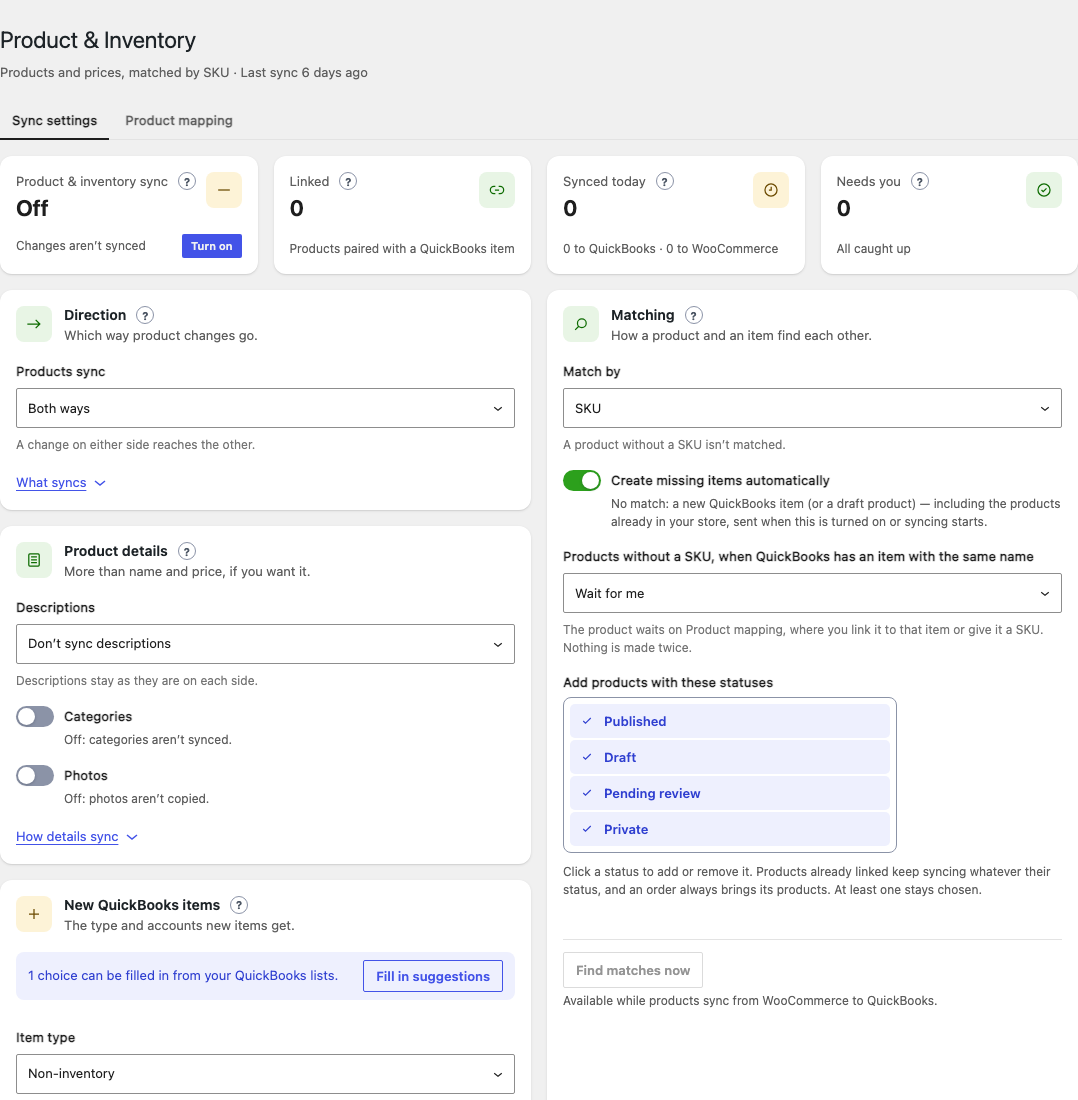
The one rule: give every product a SKU
Products and items find each other by SKU. A product without one can't be matched automatically — link it by hand on Product mapping, or add a SKU. For variable products, each variation needs its own SKU.
Turn it on
- Open QuickBooks → Product & Inventory and click Turn on on the first tile.
- Under Direction, choose Products sync: Both ways, WooCommerce → QuickBooks only or QuickBooks → WooCommerce only.
- Under Matching, leave Match by on SKU (or SKU, then name).
- Under New QuickBooks items, choose the Item type and its accounts.
- Click Save.
What syncs
Name (from WooCommerce to QuickBooks only), SKU, regular price, and whether it's taxable (US companies). Prices sync only when your store and QuickBooks use the same currency — otherwise the same number would be different money. Under Product details, each off until you turn it on:
- Descriptions — the short description or description, as the item's sales description (plain text, up to 4,000 characters).
- Categories — the product's category becomes its item's category in QuickBooks ("Clothing › Hats" → "Clothing:Hats").
- Photos — the product's photo is attached to its item. Photos are never copied back.
Matching and new items
- Create missing items automatically — on: a product with no match gets a new QuickBooks item, and a new QuickBooks item a draft product you publish when ready. Off: it waits on Product mapping for you.
- Item type for new items: Non-inventory (recommended), Inventory (QuickBooks tracks quantity) or Service, with its Income account — and for Inventory, its Cost of goods sold account and Inventory asset account.
- Add products with these statuses — Published, Draft, Pending review, Private.
- Find matches now links products already in both places by SKU; it never creates one.
The plugin never guesses: if two QuickBooks items have the same SKU, or a match is already linked to another product, the product waits on Product mapping with the reason.
Product mapping
Which WooCommerce product is which QuickBooks item: All products or Needs attention, searchable by name or SKU. Link / Change link searches QuickBooks; the item with the product's own SKU comes first. Linking by hand copies nothing — the next change syncs as usual. QuickBooks items waiting lists items that couldn't be copied, with the reason.
Bundles: link a product to a QuickBooks bundle and it sells as a kit — each sale posts the bundle's parts, with the price shared to the cent, and QuickBooks lowers the parts' stock. Bundles are made in QuickBooks.
Stock
Stock has exactly one owner — the side your team actually counts stock in. The other side follows it and is never copied back, so the two numbers can't fight.
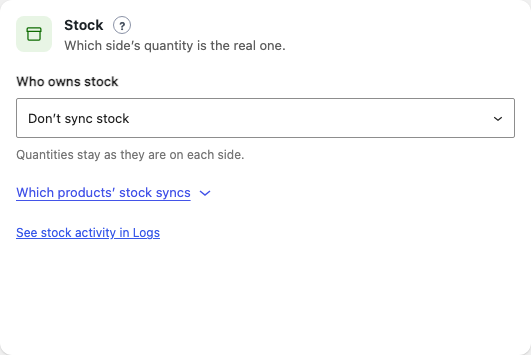
Under Stock, choose Who owns stock:
- Don't sync stock (default).
- WooCommerce owns stock — every stock change (a sale, a refund, an edit) is sent to QuickBooks as an inventory adjustment for the difference only. Choose the Account for stock corrections (Inventory Shrinkage is suggested).
- QuickBooks owns stock — your store reads QuickBooks' quantities every 15 minutes and updates products whose number changed. A sale in your store at the same moment is never overwritten.
Stock syncs only for linked products with Manage stock? turned on in WooCommerce (a variation managing its own stock), and only for QuickBooks inventory items. New items made as non-inventory or service don't track stock — the page warns you.
QuickBooks can't own stock while orders post as one summary a day: a summary doesn't take sold items off QuickBooks' stock.
Logs & Needs attention
Everything the plugin does is written down here, in plain words. If something didn't reach QuickBooks, this is where you find out why — and send it again.
Logs
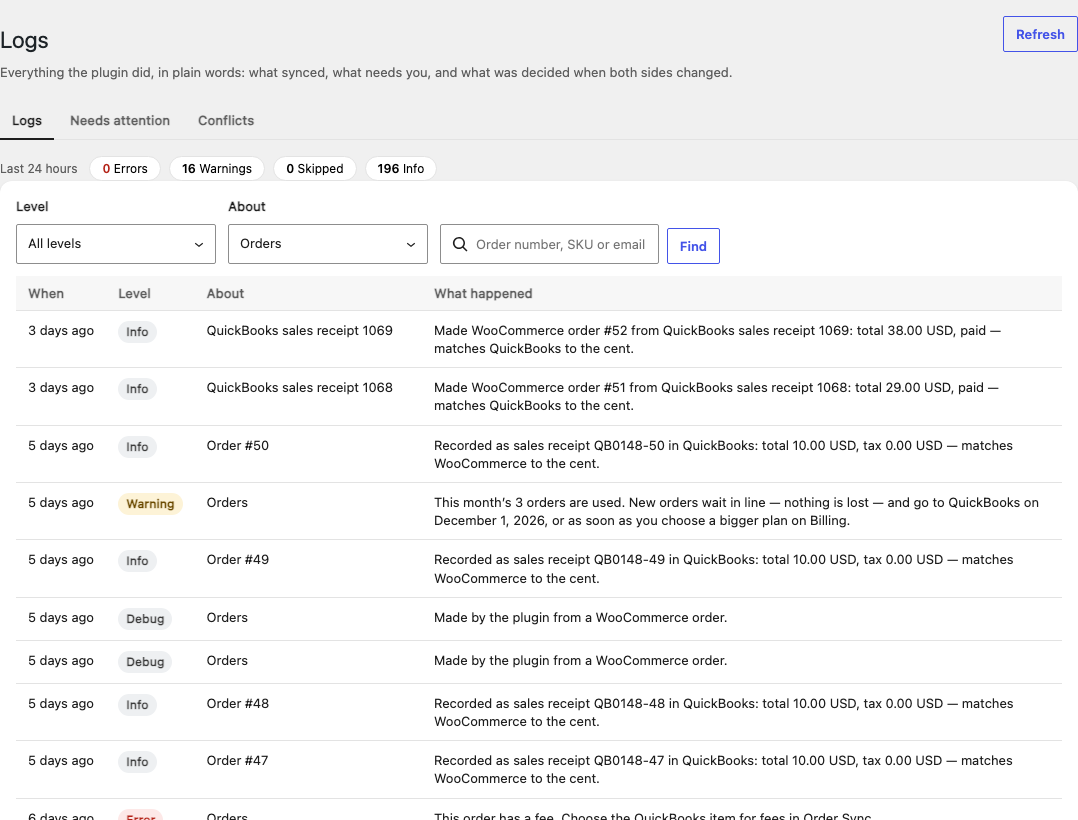
- Last 24 hours — Errors, Warnings, Skipped and Info. Click one to show only those.
- Level and About (Orders, Customers, Products, Stock, Payments, Refunds, Past orders, Connection, Emails, Changes by people, System).
- Find a record — an order number (
#1043), a product SKU or a customer's email shows only that record's lines; for an order, also its payment and refunds. - Changes people make are written down too, with who made them.
Needs attention
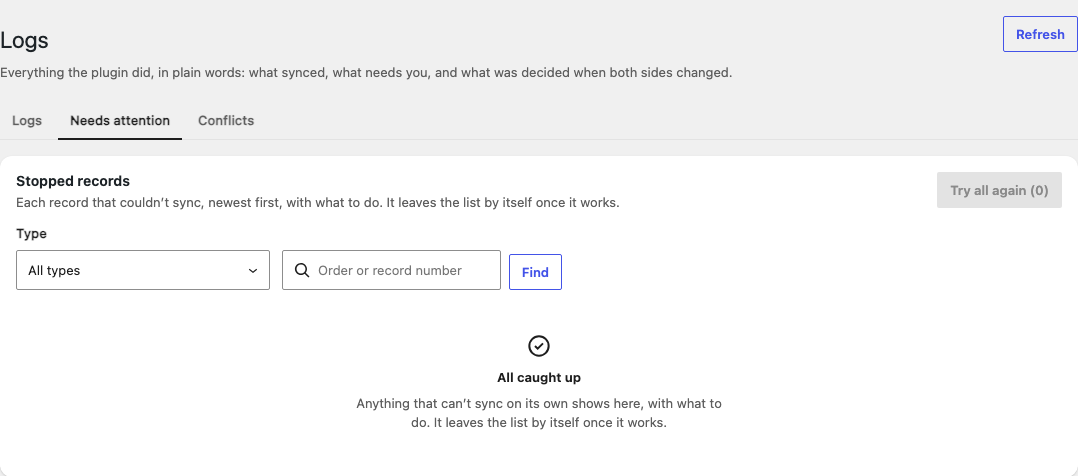
Every record that couldn't sync on its own waits here — never dropped. When more than one problem is open, What needs you lists each problem once, with how many records it stops ("12 records — A setting is missing in Order Sync") and a link that opens the exact setting that fixes it.
- Read what to do, and click its link (Open Order Sync, Open Product mapping…). The page opens at the setting, outlined.
- Fix it and click Save. Records waiting on that setting go back in line by themselves.
- For anything else, click Try again on a record, or Try all again.
Each record leaves the list by itself once it works. Open in WooCommerce and Open in QuickBooks take you to it on either side.
How the plugin retries
- QuickBooks busy or slow — it waits and tries again by itself, a few times.
- QuickBooks' rate limit — syncing waits and carries on by itself. Nothing is lost.
- Something only you can fix (a missing setting, a tax without a code) — straight to Needs attention, because trying again won't help until it's fixed.
Conflicts
Every detail that changed on both sides before the next sync: the WooCommerce value and the QuickBooks value, which one was kept and by which rule. The values are stored encrypted.
How long log lines are kept (1–365 days), and debug logging, are on Connection → Logs.
Emails
The plugin emails your store — never your customers — when something needs a person. Set it up on Connection → Emails.
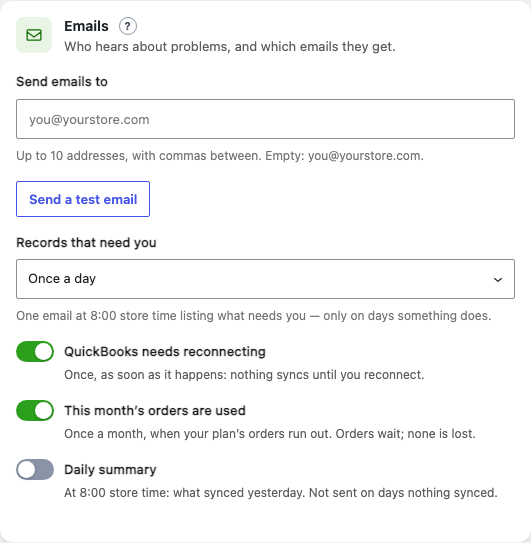
- Send emails to — up to 10 addresses, with commas between. Empty means the site's admin email.
- Records that need you — Once a day (default: one email at 8:00 store time, only on days something waits), As they happen (at most one per kind of problem every 6 hours), or Don't email.
- QuickBooks needs reconnecting (on) — once, as soon as it happens.
- This month's orders are used (on) — once a month, when the plan's orders run out.
- Daily summary (off) — at 8:00 store time, what synced yesterday.
Send a test email checks they arrive (look in the spam folder too). Recent emails shows the last 20, sent or not, and why. Emails go through your site's own mail, in WooCommerce's email style, and never name a customer.
Connection
The Connection page shows the QuickBooks company your store syncs with, whether this site can run the plugin, who gets emails, and the log settings.
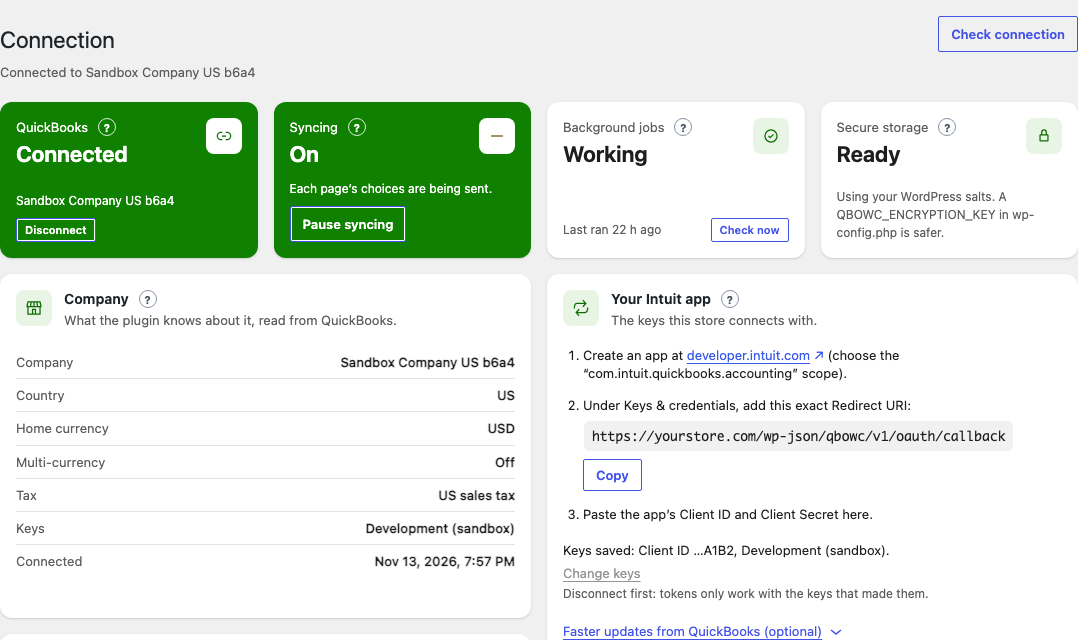
The four tiles
| Tile | What it tells you |
|---|---|
| QuickBooks | Connected (with the company and Disconnect), Needs reconnect (with Reconnect), or Not connected. |
| Syncing | The store's master switch: Start syncing… or Pause syncing. |
| Background jobs | Whether WordPress is running the plugin's background work. Check now checks again. |
| Secure storage | Whether keys can be stored encrypted, and with which key. |
Company and your Intuit app
Company shows what the plugin knows about your company, read from QuickBooks: name, country, home currency, multi-currency, tax and when it was connected. Check connection reads it again. Your Intuit app shows how the store connects — with our app, or with your own app's keys (shown only as their last 4 characters). Keys can be changed only while disconnected.
Reconnect
If Intuit stops accepting the connection, the QuickBooks tile reads Needs reconnect, syncing pauses, every page shows a banner and you get one email. Click Reconnect and sign in at Intuit again: syncing carries on where it stopped, and nothing is lost.
Faster updates from QuickBooks (optional)
By default, the plugin asks QuickBooks what changed every few minutes. If you use your own Intuit app, webhooks make it seconds: unfold Faster updates from QuickBooks, add the endpoint address it shows to your app's Webhooks page in Intuit, tick the events it lists, and paste the Verifier Token. With our app, this is done for you.
Disconnect
Click Disconnect and confirm. Also end this app's access at Intuit is recommended — but with your own app, it ends the app's access to the whole company, so another store using the same app on that company would be cut off too. Your settings are kept, so reconnecting later is quick.
A store syncs with one QuickBooks company. Reconnecting to a different company than the one it already syncs with is refused, so records never get mixed up. To move a store to another company, ask us.
Free and Pro plans
Every plan has every feature, both ways. The plan decides only how many orders, products and customers sync each month.
| Free | Pro | |
|---|---|---|
| Orders a month | 10 | Unlimited |
| Products a month | 10 | Unlimited |
| Customers a month | 10 | Unlimited |
| Every feature | ✓ | ✓ |
| Price | Free | $10 a month |
- An order counts once, the first time it reaches QuickBooks that month. Edits, resyncs, payments and refunds never count again.
- A product or a customer counts once a month, the first time it's written to either side. Stock and photos are part of their product. A sync with nothing to change never counts.
- The allowance starts again on the 1st of every month.
When the free allowance runs out
New orders, products or customers wait in line — nothing is lost, and nothing lands in Needs attention. They go to QuickBooks on the 1st, or straight away when you upgrade. A banner says so on every page, and you get one email.
Upgrade to Pro
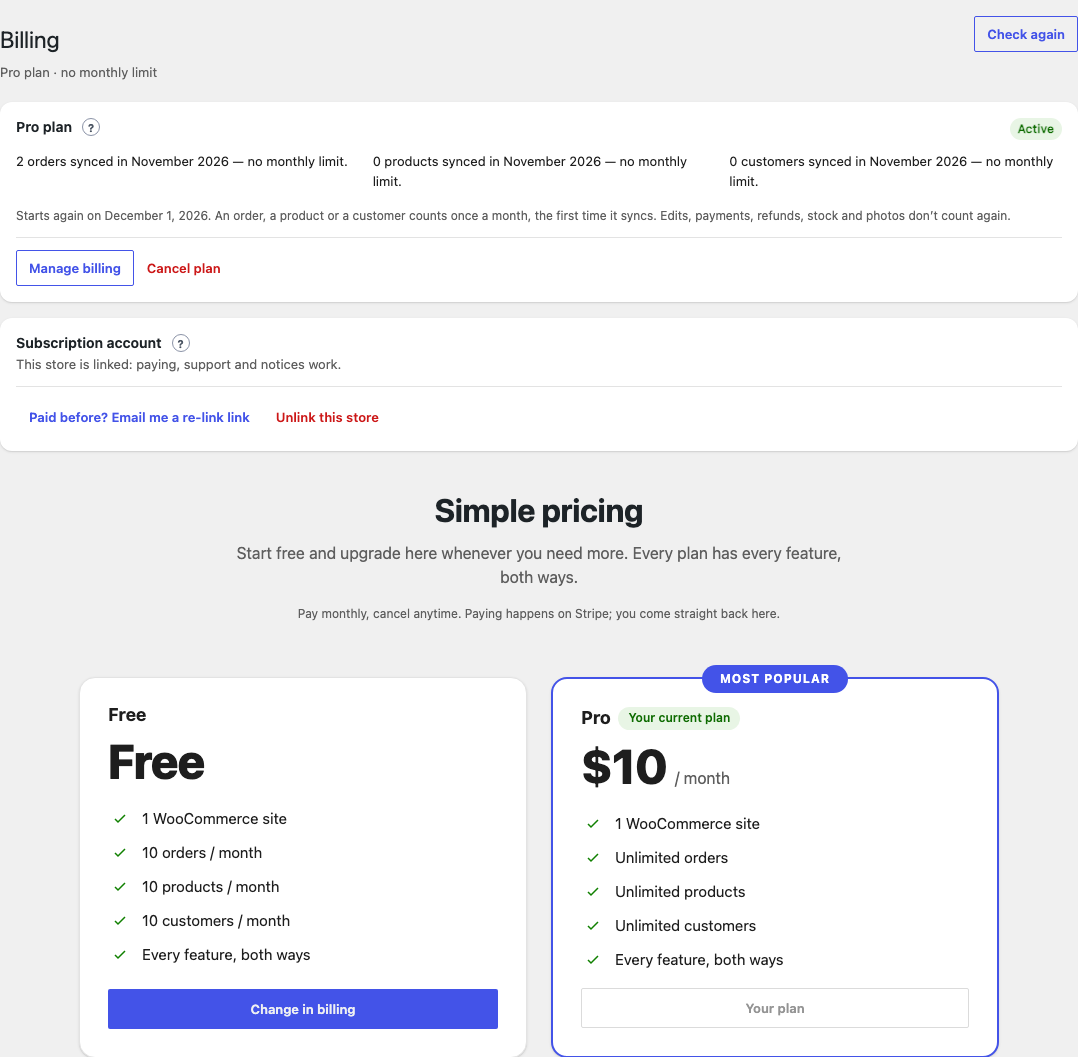
- Open QuickBooks → Billing. If the store isn't linked yet, click See plans and prices.
- Click Upgrade to Pro and pay on Stripe's secure checkout page. Card details are typed at Stripe, never on your site.
- You come straight back to Billing: "You're set up". Anything waiting for room goes to QuickBooks.
Change your card, or cancel
- Manage billing opens Stripe's billing page: update your card, see invoices, or change plan.
- Cancel plan asks first. The plan runs to the end of the period you paid for, then moves to Free. Changed your mind before then? Click Keep my plan.
- If a payment doesn't go through, everything keeps working while Stripe tries the card again. A banner tells you.
Moved your site? Link it again
After moving the site or restoring a backup, Billing may show the store as Not linked although you pay. Click Paid before? Email me a re-link link, open the email, and click the link while signed in to WordPress. Unlink this store stops all contact with our service — it doesn't cancel a paid plan.
Getting help
We're happy to help.
- Ask on WordPress.org — post in the plugin's support forum. Say what you see in Logs → Needs attention; never post keys or passwords.
- Read this guide — the search box at the top finds any setting or message.
- Linked stores — our support team can see your plugin's log (with emails and phone numbers taken out), so we often spot a problem before you write. See What the plugin shares.
News from us
Stores linked to a plan may see a short notice at the top of the plugin's pages — a new feature, or planned maintenance. Click ✕ to hide it.
What the plugin shares
Your store's data goes to your own QuickBooks company — that's the whole point — directly from your site. Apart from that, here's everything that leaves your site, and when.
Intuit (QuickBooks Online)
Only what syncing needs: the orders, payments, refunds, customers, products and stock you switched on, as described in this guide. You sign in on Intuit's page; the plugin stores the access tokens encrypted and renews them about once an hour while in use.
Stripe
Only with Record Stripe payouts on, and only reads: each payout's amount, dates and the transactions in it. Nothing about your customers is read or stored.
Our service
- Not linked — almost nothing. Plans and prices are fetched only when you click See plans and prices, and nothing about the store is sent with that.
- Linking (when you click Link this store, buy a plan, use Connect with our app, or follow a re-link email) — your site address, the admin email, the plugin version, and a secret key your store made, sent once and stored encrypted.
- Linked, every request signed with that key:
- the plan, read at most every 12 hours;
- every 5 minutes, the plugin's new log lines, with email addresses and phone numbers taken out first;
- a queue report — counts only: jobs waiting, when they last ran, whether QuickBooks is connected, and your WordPress, WooCommerce and PHP versions;
- notices to show, when someone opens the plugin's pages.
- Orders are counted on your site, not sent: only the plan's limits are read.
- With Connect with our app, Intuit's tokens pass through our service once, when you connect, and when they're renewed — never your QuickBooks records. QuickBooks' change notices reach your site through us as record ids only.
Unlink this store on Billing stops all of it.
Fixing common problems
Find the message you see, then follow the fix. Most messages appear on the Dashboard, in Logs → Needs attention, or as a banner.
Connecting to QuickBooks
"Intuit won't accept this site's address yet"
Intuit only accepts real web addresses for production keys. The message says which of these it is: plain permalinks (choose any other option in Settings → Permalinks), an IP address instead of a domain, http instead of https, or production keys on a local site. Fix it, then connect again — or use Connect with our app.
"Connection cancelled" or "That connect link didn't work"
You cancelled at Intuit, or the link was more than 10 minutes old or already used. Nothing changed: click Connect to QuickBooks again.
"That's a different QuickBooks company"
This store already syncs with another company, and a store syncs with one company only, so its records never get mixed up. The new company's access was given back. Choose the company the store already syncs with at Intuit — or, to move the store to another company, ask us.
"We couldn't connect to QuickBooks"
Intuit refused, and the message quotes its words. With your own app, check the Client ID, Client Secret, Development or Production keys, and that the Redirect URI in your Intuit app matches exactly (use Copy).
The Connection page says "Needs reconnect"
Intuit stopped accepting this store's access (for example, it was revoked in QuickBooks, or the app's keys changed). Syncing is paused and nothing is lost. Click Reconnect and sign in at Intuit again.
Orders
An order isn't in QuickBooks, and there's no error
- On the Dashboard, check that QuickBooks is connected and syncing is on (no Finish setting up card).
- On Order Sync, check the Order sync tile says On.
- Check the order's status — pending, failed and draft orders are never posted — and that it was placed after Sync orders from.
- On the free plan, check Billing: the month's 10 orders may be used, and the order is waiting for the 1st.
- Search for the order in Logs and read its lines.
"This order is in EUR, but your QuickBooks company only uses USD"
Turn on multi-currency in QuickBooks (gear icon → Account and settings → Advanced → Currency — it can't be turned off again), then add the currency under gear icon → All lists → Currencies. Click Check again on Order Sync. Orders waiting carry on by themselves.
"Map the tax "VAT 20%" to a QuickBooks tax code in Order Sync → Taxes"
The order has a tax with no QuickBooks code, or two codes share its rate. Add it under Your taxes and their QuickBooks codes and click Save. See Taxes.
"This order has sales tax, but sales tax isn't set up in QuickBooks"
Set up sales tax in QuickBooks (US companies), so the tax isn't lost, then try the order again.
"Choose the QuickBooks item for shipping charges in Order Sync" (or fees, discounts, lines without a product)
Open Order Sync → Lines & accounts — the link in the message opens it at the right field — choose the item or account, and click Save. Orders waiting on it carry on by themselves.
"Waiting for product "…" to be added to QuickBooks first"
The order needs its product's QuickBooks item. It goes as soon as the product syncs or you link it on Product mapping. If the product can't get there, its own reason is shown.
"The order doesn't add up"
The order's lines don't come to the total WooCommerce charged — usually another plugin changed the order without updating its totals. Nothing was posted. Recalculate the order in WooCommerce (or fix the plugin causing it), then Resync.
"QuickBooks worked out … but it should be …, so it was voided"
QuickBooks calculated a different total than your order, usually because of its own tax settings. The document was voided so no wrong amount stays in your books. Check your tax settings, then Resync.
"This order's QuickBooks document was deleted in QuickBooks, so it wasn't posted again"
Someone deleted it in QuickBooks on purpose, so the plugin doesn't put it back. If it was a mistake, use Resync on the Dashboard.
"QuickBooks won't record this order because it's dated before a product's inventory start date"
QuickBooks refuses a sale of an inventory item dated before that item's start date (QuickBooks error 6270). Change the item's inventory start date in QuickBooks to an earlier day, then try again.
"Waiting: this month's 10 orders are used"
The free plan's orders for the month are used. The order waits — nothing is lost — and goes on the 1st, or straight away when you upgrade.
Send an order again
On the Dashboard, find the order and click Resync. It updates the document already in QuickBooks; it never makes a second one.
Customers and products
"2 QuickBooks items have the SKU "X""
The plugin never guesses between two items. Link the right one on Product & Inventory → Product mapping, or make the SKUs unique in QuickBooks, then Try again.
"This product has no SKU, so it can't be matched"
Add a SKU in WooCommerce (each variation needs its own), or link the product by hand on Product mapping.
"Choose the item accounts in Product & Inventory before new QuickBooks items can be created"
Under New QuickBooks items, choose the accounts (or Fill in suggestions), click Save, then Try again.
"Its price wasn't copied: your store is in INR and QuickBooks in USD"
By design: the same number would be different money, so prices stay as they are on each side. Everything else still syncs.
"The QuickBooks customer with this email is already linked to another customer here"
Two of your customers share one email. Merge them in QuickBooks or change one of the emails, then Try again.
"This QuickBooks customer has no email, and WooCommerce needs one to make a customer"
Add an email to the customer in QuickBooks; the next change syncs it.
Stock
"WooCommerce doesn't manage stock for this product"
Turn on Manage stock? on the product (on the variation itself, for a variation). The next check sends it.
"QuickBooks doesn't count stock for "X" (it isn't an inventory item)"
Only QuickBooks inventory items track quantity. Change the item's type to Inventory in QuickBooks if you want its stock synced.
"Choose the account for stock corrections in Product & Inventory"
With WooCommerce owning stock, choose the Account for stock corrections (Inventory Shrinkage is suggested), click Save, then Try again.
The plugin itself
"Background jobs aren't running"
WordPress runs background work only when someone visits your site, unless a real cron job does it. Ask your host to run wp-cron.php on a schedule (every minute or five). Check now on Connection checks again.
"Syncing is waiting"
QuickBooks asked the plugin to slow down (its rate limit), and it carries on by itself — or the connection broke, and a Reconnect button shows.
"We couldn't check your plan"
Our service didn't answer. Your plan stays as it was for up to 7 days while the plugin keeps trying; nothing stops.
Questions
Does it work with QuickBooks Desktop?
No. This plugin is for QuickBooks Online only.
Do I need an Intuit developer account?
Not with Connect with our app: sign in at Intuit and choose your company. If you'd rather use your own Intuit app, you need a free developer account; the wizard shows exactly what to copy where.
Which countries does it support?
QuickBooks Online companies in the United States, Canada, the United Kingdom and Australia. Tax follows your company's edition: US sales tax, or the tax codes you map once on Order Sync.
Will it make duplicates in QuickBooks?
No. Every record is linked once, every write carries a key QuickBooks uses to refuse a repeat, and an answer lost on the way is found again before anything is made a second time.
Does it slow down my checkout?
No. Nothing it does runs during checkout except putting a small job in a queue. A QuickBooks outage never fails a sale.
Does it work with High-Performance Order Storage (HPOS)?
Yes, and with classic storage.
Will it send my existing orders?
Only if you ask: orders placed before Sync orders from are never sent on their own. Send the days you choose with Past orders.
Does it record Stripe fees and payouts?
Yes, with the WooCommerce Stripe plugin: turn on Record Stripe payouts on Order Sync. See Stripe payouts.
Is it free?
Yes: the free plan has every feature, for 10 orders, 10 products and 10 customers a month. Pro removes the limits for $10 a month.
Can I cancel Pro any time?
Yes. It runs to the end of the period you paid for, then moves to Free. Your settings are kept.
Can two stores use one QuickBooks company?
Yes. Give each store its own Order number prefix (for example WEB- and SHOP-), and switch on Orders made in QuickBooks → Also become WooCommerce orders in one store only. When disconnecting a store that uses your own Intuit app, don't end the app's access at Intuit if the other store uses the same app.
Does it email my customers?
Never. Its emails are for your store only, and customers made in WooCommerce from QuickBooks don't get a welcome email either.
Is my QuickBooks password stored?
No. You type it at Intuit, never on your site. The plugin keeps only the access tokens Intuit gives it, encrypted.
What happens if I delete the plugin?
Deleting it (not just deactivating) removes everything it stored on your site: its tables, settings and scheduled jobs. Your documents stay in QuickBooks and your orders stay in WooCommerce.
QuickBooks Integration For WooCommerce · Home · Plugin page on WordPress.org · Support forum
Not affiliated with, endorsed by or sponsored by Intuit Inc. or Automattic. “QuickBooks” is a trademark of Intuit Inc.; “WooCommerce” is a trademark of Automattic Inc.